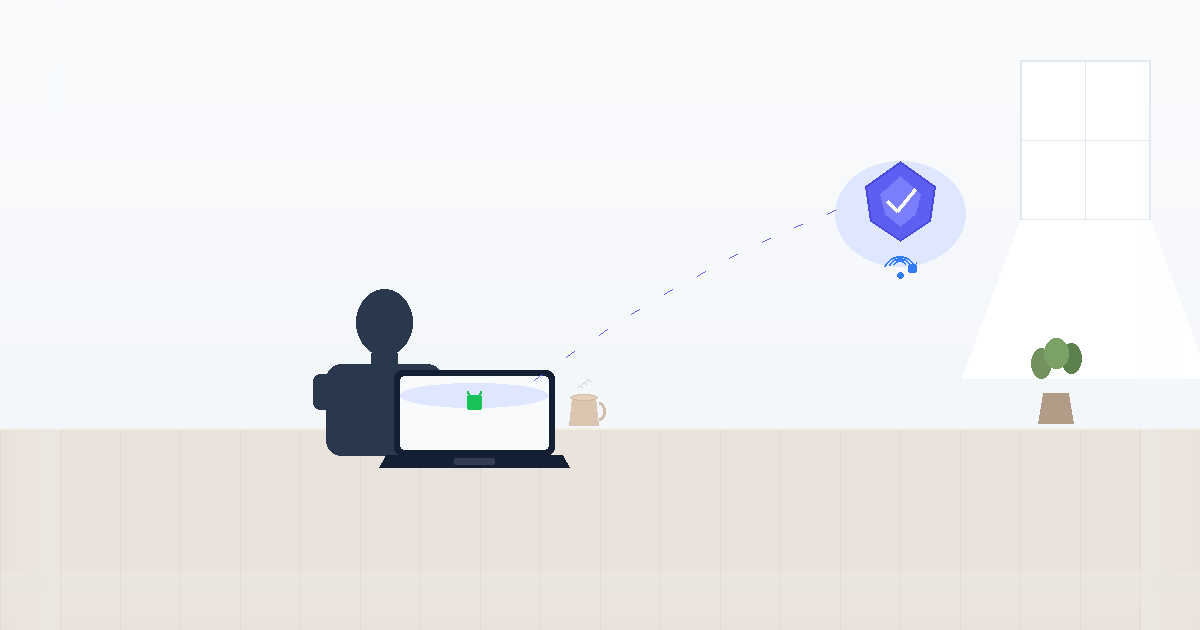
What Makes a Wi-Fi Network Unsafe?
Unsafe Wi-Fi networks expose your data to interception, manipulation, or theft. Attackers set up fraudulent networks to steal credentials, inject malware, or monitor your activity. Knowing what to look for helps you avoid these traps before connecting.
Even legitimate networks can be unsafe if they lack proper configuration or are compromised by attackers already on the network. This is why vigilance is your first line of defense.
The Hidden Risk
Attackers don't just crack passwords; they create entire fake environments that look and feel identical to the real ones you trust every day.
Sign #1: Suspicious or Misspelled Network Names
Attackers create fake hotspots with names almost identical to legitimate networks. You might see "CoffeeShop_Guest" versus "CoffeeShop_Guest_5G" or "Hotel_WiFi" versus "Hotel_WiFi_Free." These subtle differences trick you into connecting to a malicious network.
This is often called an "Evil Twin" attack. Once connected, every piece of data you transmit—from social media logins to work emails—passes directly through the attacker's device.
What to do:
- Always verify the exact network name with staff.
- Ask for the official password even if the network appears open.
- Write it down to ensure you don't connect to a lookalike by mistake.
Sign #2: No Password Required or Weak Security
Legitimate businesses typically protect their networks with passwords. Open networks with no security are easier for attackers to monitor. Even worse are networks with weak, easily guessed passwords like "12345678" or "password" posted publicly.
Without encryption, anyone within range can "sniff" your traffic using simple, free software. Your data is essentially broadcast through the air in plain text.
What to do:
- Treat open networks as highly risky by default.
- Connect your VPN immediately after the connection is established.
- Never conduct banking or enter credit card details on unprotected networks.
Sign #3: Unusual Redirects or Pop-Up Pages
Safe networks don't force you through multiple redirect pages or display excessive pop-ups asking for personal information. If you're redirected to a suspicious-looking login portal that asks for more than just accepting terms, that's a red flag.
These portals are often designed to harvest your email address, phone number, or social media credentials for future phishing attacks.
What to do:
- Don't enter personal details into unexpected portals.
- Legitimate captive portals usually just require a simple "Accept" button.
- Close any page asking for payment information to "upgrade" to faster Wi-Fi.
Sign #4: Slow Speeds or Strange Behavior
Unsafe networks often run on basic hardware or are flooded with monitoring tools, resulting in unusually slow speeds. If websites load slowly, fail to load completely, or you see security certificate warnings, disconnect immediately.
Certificate warnings are critical alerts. They often mean someone is trying to intercept your encrypted connection (a Man-in-the-Middle attack).
What to do:
- If performance feels off, trust your instincts and disconnect.
- Never click "Proceed anyway" on a browser security warning on public Wi-Fi.
- Find a different network or use your phone's cellular data.
Sign #5: Lack of HTTPS on Login Pages
Before entering any credentials, check for the padlock icon in your browser's address bar. If login pages or payment screens don't use HTTPS (they show "http://" instead of "https://"), your data travels unencrypted and is visible to anyone on the network.
Modern browsers are good at flagging these, but attackers can sometimes use "SSL stripping" to force you onto the insecure version of a site.
What to do:
- Ensure the padlock icon is present before typing any password.
- Use a VPN like Free VPN US which adds encryption even to non-HTTPS traffic.
- Only visit sensitive sites (bank, email) on trusted, secure connections.
Pro Tip
The most dangerous networks aren't the ones that look "hacker-ish"—they're the ones that look the most convenient and professional.
How Free VPN US Secures Your Connection
- Instant Encryption: All your traffic is locked before it even hits the Wi-Fi router.
- Hidden IP: Malicious actors on the network can't see who you are or what you're doing.
- Security Layer: Even if a site is insecure, the VPN tunnel provides a baseline of safety.
- Simple One-Tap: No complex settings—just open and connect for total peace of mind.
For more details on keeping your data safe, read our guide on who can see your browsing history.
Frequently Asked Questions
Can I trust Wi-Fi networks that require payment?
Paid networks aren't automatically safer. While they reduce casual misuse, attackers can still monitor traffic or create fake paid hotspots. Always use a VPN regardless of whether a network is free or paid. Payment doesn't guarantee security.
What if I accidentally connected to an unsafe network?
Disconnect immediately. If you didn't use a VPN, avoid logging into accounts or entering personal information until you can change passwords on a secure connection. Monitor your accounts for unusual activity. Using a VPN prevents this risk entirely.
Are hotel Wi-Fi networks safer than café networks?
Not necessarily. Both are public networks with multiple users. Hotels may have better infrastructure but they don't guarantee security. Many hotel networks still lack proper encryption between users. Always use a VPN on any public network, regardless of location.
How can I tell if a network name is legitimate?
Ask staff for the exact network name and spelling. Check if they provide a password separately. Be suspicious of networks with misspellings, extra numbers, or words like 'Free' 'Public' or '5G' appended to similar names. When in doubt, don't connect.
Wi-Fi Security Deep Dive
Get answers to more specific questions about public network safety and encryption.
Related Security Guides
Stay Safe on Any Wi-Fi Network
Don't leave your privacy to chance. Free VPN US encrypts your connection on public networks with a single tap.
- Fast & Reliable
- No Account Required
- 100% Privacy Focused